Compress Video Online Without Uploading: A Private Browser-Based Guide
Need to make a video smaller, but do not want to upload it to an online converter? Localsquash compresses MP4, MOV, WebM, AVI, and MKV files locally in your browser so your video stays on your device.
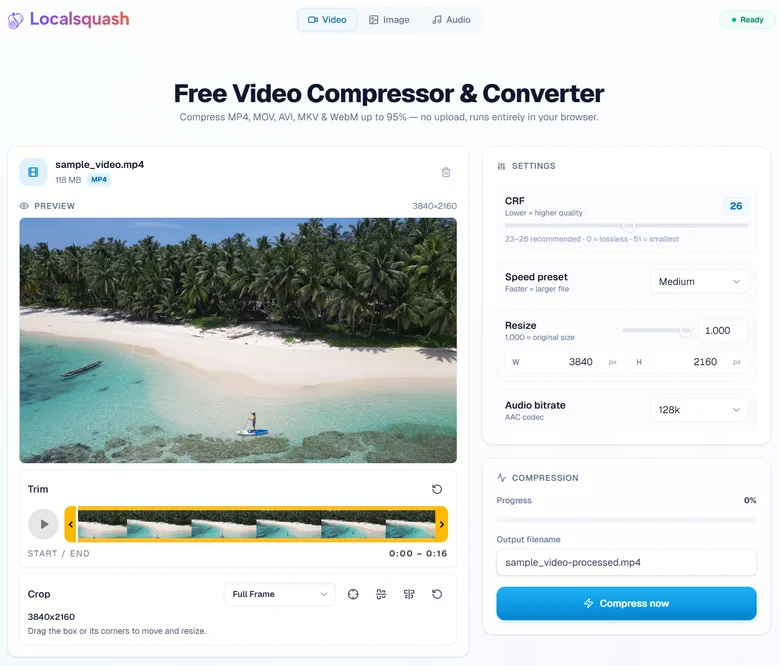
This guide explains how browser-based local video compression works, when it makes sense, how to use it, and when a desktop app or cloud converter may still be the better choice.
TL;DR
You can compress video online without uploading it by using a browser-based compressor that runs the encoding engine locally on your device. Localsquash uses FFmpeg WebAssembly in your browser, so you can shrink video files for email, Slack, Discord, WhatsApp, websites, or storage without sending the original video to a server.
Best fit:
- Private videos
- Client footage
- Screen recordings
- Phone videos
- One-off compression jobs
- Quick MP4 conversion
- Files you do not want to upload to a cloud converter
What Does "Compress Video Without Uploading" Mean?
Most online video compressors work like this:
- You upload the video.
- The service processes it on a server.
- You wait for the result.
- You download the compressed file.
That workflow is convenient, but your file has to leave your device before compression starts. A no-upload compressor loads the compression engine in your browser so your own device does the processing.
In practical terms:
- No upload means the file does not need to be sent to a server.
- Local processing means your browser and CPU handle the compression.
- Private compression means you avoid creating a server-side copy of the video.
- Browser-based compression means you do not need to install a desktop app.
Why Compress Video Locally?
Video files get large quickly. A short phone recording, screen capture, product demo, or client clip can become too large for common sharing limits.
You may need to compress a video because:
- Gmail or Outlook rejects the attachment.
- Slack, Discord, or WhatsApp says the file is too large.
- A website upload form has a strict size limit.
- A client review file needs to be smaller.
- A screen recording is too large to share.
- A video takes too long to upload.
- You want to save storage space.
Cloud compressors can solve file size problems, but they add an upload step. For private videos, internal recordings, legal files, medical content, unreleased demos, or client footage, local compression is often the safer and simpler choice.
How Localsquash Compresses Video in the Browser
Localsquash uses FFmpeg compiled to WebAssembly. FFmpeg is a widely used media engine for converting, encoding, trimming, resizing, and compressing video. WebAssembly allows this processing to run inside modern browsers.
The workflow is simple:
- Open the Localsquash video compressor.
- Choose a video from your device.
- Adjust compression settings if needed.
- Click compress.
- Download the smaller MP4 file.
The video is processed on your device instead of being uploaded to a server.
How to Compress a Video Without Uploading
Here is the recommended workflow.
Add your video
Open the Localsquash video compressor and select a file from your device.
Common input formats include:
- MP4
- MOV
- WebM
- AVI
- MKV
- WMV
Localsquash exports compressed video as H.264 MP4, which is widely supported across phones, browsers, desktops, messaging apps, and websites.
Trim anything unnecessary
Remove parts of the video you do not need before adjusting quality settings. Trimming is often the easiest way to reduce size because every second adds data.
Resize if resolution is too high
If your source is 4K but the destination is email, chat, or website preview, lower resolution can dramatically reduce size.
- 1080p for good quality sharing
- 720p for smaller files
- 480p for previews or strict limits
Adjust CRF quality
CRF controls the balance between quality and file size. Lower CRF usually means better quality and larger files. Higher CRF usually means smaller files with lower quality.
- CRF 18-22: high quality
- CRF 23-26: good everyday compression
- CRF 28-35: smaller files with visible quality loss
Compress and download
Click compress and let your device process the file. When it is done, download the smaller MP4. No account, watermark, upload queue, or checkout screen is needed.
Local Video Compressor vs Cloud Video Compressor
| Factor | Cloud video compressor | Localsquash |
|---|---|---|
| Upload required | Yes | No |
| File privacy | File leaves your device | File stays on your device |
| Setup | No install | No install |
| Speed bottleneck | Upload speed and server queue | Your device performance |
| Best for | Public files, cloud workflows | Private files, quick compression |
| Output | Depends on tool | H.264 MP4 |
Cloud tools are useful when you need server-side processing, batch workflows, or many output formats. Localsquash is better when you want a private, no-upload way to make a video smaller.
Localsquash vs Desktop Apps Like HandBrake
Desktop video apps are powerful. HandBrake, FFmpeg, and similar tools are excellent for advanced compression workflows.
Use a desktop app if you need
- Batch processing
- Advanced codec options
- Hardware acceleration
- Subtitle control
- Audio track management
- Very large exports
- Deep encoding presets
Use Localsquash if you need
- No installation
- No upload
- Simple MP4 compression
- Browser convenience
- Quick trimming, cropping, resizing, and CRF control
- A private workflow for one file or a few files
Localsquash is not trying to replace every desktop video workflow. It is designed for the common case: you have a large video and need a smaller version quickly, privately, and without installing anything.
For a deeper desktop comparison, see the HandBrake alternative guide.
When a No-Upload Video Compressor Is the Best Choice
A no-upload video compressor makes the most sense when the video is private or when uploading is the slowest part of the job.
- Compressing video for email
- Compressing video for Discord
- Compressing video for Slack
- Compressing video for WhatsApp
- Compressing screen recordings
- Compressing client review files
- Making product demo videos smaller
- Reducing phone video size
- Converting common formats to MP4
- Shrinking video before website upload
It is especially useful when you do not want your original file sitting on a third-party server, even temporarily.
When Not to Use Localsquash
Localsquash is not the best tool for every video job. Use another tool if:
- You need full timeline editing.
- You need subtitles, captions, or templates.
- You need AI video editing tools.
- You need batch conversion.
- You need advanced audio track control.
- You need GPU-accelerated desktop encoding.
- You need to process extremely large files beyond your browser or device memory.
For those workflows, a desktop app or full online editor may be better. But for simple private compression, Localsquash is designed to be faster and simpler.
Frequently Asked Questions
Bottom Line
If you need to compress video online without uploading it, Localsquash is built for that exact job.
It gives you a browser-based workflow with local FFmpeg compression, practical controls, MP4 output, no account, no watermark, and no server upload.
For private videos, quick sharing, screen recordings, client clips, and everyday file size problems, that is often the simplest option.
Compress your video privately with Localsquash
No account needed. No watermark. Your video stays on your device.
Compress a video with Localsquash